The best productivity apps do more than add features to your phone or computer. They help you spend less time searching for information, coordinating schedules, repeating routine tasks, or deciding what to do next. The right combination can save hours over a week, but installing too many tools can create more notifications and maintenance than it eliminates.
This guide compares 20 productivity apps across task management, calendars, note-taking, writing, automation, focus, and collaboration. You will learn what each tool is useful for, where its limits are, and how to choose a practical setup without paying for overlapping features. App features and plan terms can change, so check each provider’s current documentation before making a purchase or moving sensitive information.
What Makes a Productivity App Worth Using?
A productivity app earns a place in your workflow when it removes a real source of friction. That might mean capturing a task before you forget it, finding a meeting time without a long email thread, or turning a recurring process into a checklist. The benefit is not the number of features; it is the time and attention you recover.
Useful apps tend to do one or more of the following:
- Reduce repeated work: Templates, integrations, and automation can remove routine steps.
- Make priorities visible: A trusted task list or calendar helps turn intentions into a realistic plan.
- Improve retrieval: Searchable notes and consistent file organization make information easier to find.
- Support coordination: Shared projects and schedules can reduce handoffs and status requests.
- Protect focused time: Focus tools can make interruptions less likely when used alongside sensible team norms.
No app can decide which work matters, resolve unclear responsibilities, or compensate for an overloaded schedule. Before adopting a tool, identify the specific problem it should solve and how you will know whether it helps.
How to Choose Productivity Apps for Your Workflow
Start with your work rather than a list of popular features. A freelancer who manages client deadlines may need a task manager and calendar. A distributed team may need shared project tracking and fewer scattered conversations. A writer may benefit more from a distraction-light editor and a reliable notes system than from a complex workspace.
Identify the bottleneck first
For several workdays, notice where time or attention is lost. Common bottlenecks include switching between chat and email, rebuilding the same document, missing follow-ups, searching through notes, and scheduling meetings. Choose the one problem that has the clearest impact and test a tool against it.
Check platform fit and integrations
Confirm that an app works on the devices and operating systems you rely on. Consider whether it connects to your existing calendar, email, document storage, or project tools. Integrations can be useful, but every connection introduces another place where permissions, settings, and data flow need attention.
Consider privacy, accessibility, and cost
Review what information the app collects, how it handles account security, whether your organization permits its use, and what happens if you cancel. For confidential work, follow your employer’s policies and avoid putting sensitive details into a service that has not been approved. Check accessibility features, too, including keyboard support, screen-reader compatibility, and notification controls.
Finally, try a tool on a small, low-risk workflow before migrating everything. A short trial can reveal whether its daily experience suits you better than a feature comparison does.
At a Glance: 20 Productivity Apps
| App | Best suited to | Category |
|---|---|---|
| Todoist | Personal and shared task lists | Task management |
| TickTick | Tasks with planning and focus features | Task management |
| Microsoft To Do | Simple lists in a Microsoft workflow | Task management |
| Things 3 | Personal task planning on Apple devices | Task management |
| Notion | Flexible notes and connected workspaces | Workspace |
| Evernote | Capturing and finding reference material | Note-taking |
| Obsidian | Locally stored, linked personal notes | Note-taking |
| Google Calendar | Scheduling and shared calendars | Calendar |
| Microsoft Outlook | Email and calendar coordination | Calendar and email |
| Calendly | External appointment scheduling | Scheduling |
| Asana | Team projects and task ownership | Project management |
| Trello | Visual workflows and lightweight projects | Project management |
| ClickUp | Teams seeking a broad work platform | Project management |
| Slack | Team conversations and coordination | Communication |
| Zoom | Video meetings and remote conversations | Communication |
| Zapier | Connecting apps with no-code workflows | Automation |
| IFTTT | Simple app and device automations | Automation |
| Forest | Short, phone-free focus sessions | Focus |
| Freedom | Blocking distracting sites and apps | Focus |
| Grammarly | Writing feedback and proofreading support | Writing |
Task Management Apps
Task managers are most helpful when they become a dependable place to capture commitments. They should make it easy to record a task, give it a sensible date or project, and review what is due. If maintaining the system takes longer than doing the work, simplify it.
1. Todoist: A flexible task manager
Todoist is designed for capturing and organizing personal or shared tasks. Projects, labels, due dates, recurring tasks, and natural-language entry can help users move from an inbox of loose reminders to a more organized plan. It can suit people who want a dedicated task list without building a full project workspace.
Its limitation is also a useful boundary: a task manager is not automatically a full project-management system. Complex dependencies, resource planning, or detailed reporting may call for a team platform. Keep task names actionable, such as “Send revised proposal,” rather than vague entries such as “Proposal.”
2. TickTick: Tasks with planning features
TickTick combines task organization with additional planning and focus-oriented features. That can appeal to people who prefer to manage tasks and daily routines in one place. Recurring items and calendar-style views can make regular commitments easier to see alongside one-off work.
Before adopting it, decide whether its extra tools will replace something you already use or merely add another layer. Keep the setup light: a few lists and clear due dates are often more useful than a complicated taxonomy.
3. Microsoft To Do: Straightforward lists
Microsoft To Do offers a simple way to organize personal tasks and lists, and it may fit naturally for people already working in Microsoft’s ecosystem. It is a reasonable choice for errands, follow-ups, and basic work reminders when the priority is easy capture rather than advanced project views.
People coordinating larger projects may need a more capable planning tool. Check how tasks connect with the Microsoft services your organization uses, since capabilities can depend on account type and product configuration.
4. Things 3: Personal planning for Apple users
Things 3 is a personal task manager for Apple platforms, with an emphasis on organizing projects and next actions. It may suit an individual who wants a polished, focused way to plan work across supported Apple devices. Its deliberate personal-planning approach can be less suitable when a team needs shared ownership and centralized administration.
Check current platform availability and purchase terms before choosing it, especially if you use devices outside the Apple ecosystem. A good personal task app should make reviewing priorities easier, not encourage you to turn every idea into a dated obligation.
Note-Taking and Workspace Apps
Notes are useful only when you can capture information quickly and retrieve it later. Choose an approach that matches how you think: structured pages, searchable notebooks, or a network of linked notes. Avoid building a complex knowledge system before you have a recurring need for one.
5. Notion: A customizable workspace
Notion brings documents, databases, and project information into a flexible workspace. People use it for meeting notes, project hubs, editorial calendars, reference pages, and personal planning. Templates and linked databases can reduce repeated setup when several projects follow the same process.
Its flexibility can become a time sink. A workspace with many properties and dashboards can be harder to maintain than a shared folder and a task list. Begin with one useful page or database, clarify who owns it, and add complexity only when a real workflow requires it.
6. Evernote: A searchable capture system
Evernote is known for collecting notes and reference material in a searchable library. It can be useful for people who save meeting details, research snippets, documents, and personal references and later need to find them. Capture is valuable when paired with a predictable way to name or organize material.
Think about export options, device limits, and plan details before making it the sole home for important records. Do not assume a search tool or automatic organization will replace a simple review habit; archive or delete material that no longer serves a purpose.
7. Obsidian: Linked notes with local files
Obsidian is a note-taking application built around linked notes and Markdown files stored locally by default. That structure can appeal to researchers, writers, and learners who want to connect ideas and maintain a personal knowledge base. Its plugin ecosystem can support specialized workflows, though community additions may have different maintenance and security considerations from core features.
Local storage does not automatically create a backup. If your notes matter, establish a backup and sync approach that fits your devices and risk tolerance. Keep the system focused on useful connections rather than spending hours tuning themes and plugins.
Calendar and Scheduling Apps
A calendar should show when you have committed time, not simply what you hope to accomplish. Protect enough space for focused work, travel, preparation, and breaks. Avoid treating every unscheduled hour as available, particularly when your role includes work that is difficult to predict.
8. Google Calendar: Scheduling across commitments
Google Calendar supports personal and shared scheduling, making it useful for appointments, recurring events, and visibility into availability. Separate calendars can help distinguish work, personal commitments, or team schedules, provided the setup remains understandable to the people who need to see it.
Use event titles that explain the commitment and add preparation time when necessary. For shared calendars, review visibility and access settings so private details are not exposed unintentionally. Features and access can vary across account types and administrative policies.
9. Microsoft Outlook: Email and calendar together
Outlook combines email and calendar tools and is common in workplaces that use Microsoft services. Keeping invitations and correspondence close to the calendar can reduce context switching for some users. Shared calendars and scheduling functions can also support coordination, depending on the organization’s configuration.
The main risk is allowing email to become the default task list. Convert genuine commitments into clear tasks or calendar events, and reserve specific times to process messages rather than responding to every alert as it arrives.
10. Calendly: Reducing appointment back-and-forth
Calendly lets people share availability so others can book suitable meeting times without a long exchange of messages. It can be useful for interviews, consultations, customer calls, and other appointments with people outside your organization. Rules around meeting duration, buffers, and availability can reduce avoidable scheduling friction.
Before sharing a booking page, check which calendar is connected, what information invitees can see, and whether your settings leave enough time between calls. A scheduling link streamlines booking; it does not decide whether a meeting is necessary or ensure that every attendee is prepared.
Project Management Apps for Teams
Team project tools are most effective when they make responsibility, progress, and next steps visible. They cannot replace agreement about scope or decision-making. Pick a platform that matches the team’s workflow and establish a small set of conventions before creating multiple boards and reports.
11. Asana: Coordinating team projects
Asana helps teams organize tasks and projects, assign ownership, and track progress through different views. It can be useful when work involves multiple people and handoffs that are difficult to manage in email alone. A shared project can clarify who is doing what and when a task is blocked.
Overly detailed task structures can make routine work feel bureaucratic. Define what belongs in the project tool, who updates status, and how decisions are recorded. Confirm which features are included in the plan your team uses rather than assuming every capability is available.
12. Trello: Visual boards for simple workflows
Trello uses boards, lists, and cards to represent work as it moves through stages. Its visual layout can be easy to understand for small projects, content workflows, event planning, and personal task tracking. A card can hold a due date, checklist, or discussion, depending on the configuration.
A board may become unwieldy when projects require complex dependencies, extensive reporting, or detailed workload management. Use clear column names and regularly archive completed cards. If the team cannot tell what “in progress” means, agree on the definition before adding more labels.
13. ClickUp: A broad work-management platform
ClickUp brings a wide range of project and work-management functions into one platform. Teams may use it for tasks, documentation, goals, and different project views. That breadth can reduce the need to switch between tools when the organization is willing to configure and govern a shared system.
More functions also mean more setup decisions. Start with one team workflow and a small number of views, then evaluate whether the platform makes work easier to understand. Consider onboarding, notification settings, permission design, and export needs before making a large-scale move.
Communication and Meeting Apps
Communication tools can save time by making collaboration faster, but they can also fragment attention. Agree on which channel is appropriate for urgent issues, decisions, project updates, and non-urgent discussion. Set reasonable expectations about response times instead of treating every message as an immediate request.
14. Slack: Organizing team conversations
Slack organizes work conversations into channels and direct messages, with search and integrations that can help teams find context. Channels focused on projects or topics can make discussions easier to follow than a single, long group chat. It works best when people know where to post updates and how to record decisions that need to last.
Too many channels and alerts can create a constant stream of interruptions. Mute channels that do not require immediate attention, use status settings honestly, and move important decisions into a durable project record when appropriate. Follow your organization’s policies for retention and confidential information.
15. Zoom: Video meetings when conversation helps
Zoom supports video meetings and can help people coordinate when a live conversation is more efficient than asynchronous messages. It can be useful for discussions that need back-and-forth, demonstrations, or a shared review. A short agenda and a clear decision owner make meeting time more productive.
Video calls are not always the fastest option. For a straightforward update, a written note may be easier to read and respond to across time zones. Review recording and participant settings before meetings, and follow applicable workplace policies and local requirements.
Automation Apps
Automation connects a trigger in one service to an action in another. A simple example is saving a form response to a spreadsheet or sending a reminder when a new item is added. Automation is most useful for stable, repetitive processes with clear rules; it is less reliable when a task requires judgment or exceptions are common.
16. Zapier: Connecting web applications
Zapier offers no-code workflows that connect supported applications. A team might use an automation to route a new form submission to a project list or notify a channel when a specific event occurs. It can reduce copy-and-paste work when the trigger and desired action are predictable.
Test automations with non-sensitive data and check how failures are reported. A workflow can silently stop working if an app changes a field, authorization expires, or an unusual input appears. Document important automations and keep a manual fallback for essential processes.
17. IFTTT: Simple app and device connections
IFTTT connects services and devices through simple conditional applets. It may suit personal routines, smart-home actions, or straightforward cross-service triggers. The idea is easy to understand: when one supported event happens, perform a defined action.
Not every service or action is available, and a simple rule may not handle complex exceptions. Before relying on an applet, check whether it runs under the conditions you expect and whether the connected accounts have appropriate permissions. Avoid automating actions that could expose private data or cause unwanted changes without review.
Focus and Distraction-Management Apps
Focus tools can create useful boundaries, but they are not a substitute for manageable workloads or team norms. Use them to support a specific work session, and make sure colleagues know how to reach you for genuine emergencies. Review whether notifications can be scheduled or filtered at the operating-system level before adding another app.
18. Forest: Short, phone-free focus sessions
Forest uses a visual focus-session concept to encourage users to leave their phones alone for a chosen period. It can make a short work block feel more concrete, especially for people who respond well to a gentle, game-like prompt. It is best treated as a personal cue rather than a measure of meaningful output.
Set a realistic session length and allow for essential accessibility or work-related phone use. A timer cannot determine whether a task is important, and it should not create guilt when an interruption is necessary.
19. Freedom: Blocking digital distractions
Freedom is designed to block selected websites or apps during focus periods. It may help people who repeatedly open distracting services while working. Blocking can be more effective when you choose specific sites, schedule sessions around your work, and decide in advance what you will do instead of checking them.
Check current device support, plan details, and control options before relying on a block. Some people need access to the same sites for work, and overly strict settings can interfere with legitimate tasks. Use the lightest restriction that solves the problem.
Writing and Editing Apps
20. Grammarly: Writing feedback while you work
Grammarly provides writing feedback that can help users review spelling, grammar, tone, and clarity. It may be useful for emails, drafts, and other routine writing, particularly when proofreading time is limited. Suggestions should be treated as prompts for review, not automatic corrections that are always right.
Language tools can misunderstand context, specialized terminology, or a writer’s intended voice. Review changes before accepting them, and check your organization’s rules before entering confidential information into any writing assistant. For consequential documents, a careful human review remains important.
How to Build a Productivity App Stack That Works
A useful stack is usually smaller than the maximum number of apps you could install. Each tool should have a clear job and a known place in your routine. For example, one person might use a calendar for time commitments, a task manager for next actions, a notes app for reference, and a focus tool for two planned work blocks.
- Write down the friction: Identify one recurring problem, such as missed follow-ups or repeated appointment emails.
- Choose one tool to test: Select the simplest app that addresses that problem and works with your devices.
- Define a small routine: Decide when you will capture tasks, review the calendar, or update project status.
- Run a short trial: Use the tool on a real but low-risk workflow long enough to notice setup and maintenance costs.
- Keep, adjust, or remove it: Retain the app only if it reduces friction without creating more work elsewhere.
Write down where information belongs. If tasks appear in email, chat, a notes app, and several project boards, the main problem may be unclear ownership rather than a lack of software. A simple rule—such as recording project commitments in one shared system—can improve reliability without another subscription.
Ways to Save Time Without Adding More Apps
Small changes to how you use existing tools can produce more value than switching platforms. Review recurring meetings and remove those without a clear purpose. Turn repeated email replies, reports, and meeting agendas into reusable templates. Set notification windows so that routine updates do not interrupt concentrated work.
Batch similar tasks when it makes sense: handle administrative follow-ups together, process messages at planned times, and prepare for meetings in one session. Use calendar blocks as realistic commitments, leaving room for unexpected work. These practices do not require a new app, and they can make existing tools easier to use.
Common Productivity App Mistakes
Choosing tools because they are popular
A widely used app may still be a poor fit for your devices, team, or work style. Compare tools against a specific need rather than a feature checklist. A simple task list that you maintain is often more useful than an advanced platform no one updates.
Keeping the same information in several places
Duplicated task lists and calendars can become inconsistent. Decide which system is authoritative for each kind of information, and use integrations only when they reliably maintain that distinction. Periodically remove abandoned lists, boards, and duplicate notifications.
Automating a process before it is clear
Automation can make a flawed process happen faster and at a larger scale. First write down the steps and exceptions. Automate only the stable parts, test the result, and make sure someone notices when the workflow fails.
Ignoring security and data ownership
Convenience does not make every service appropriate for confidential information. Review access controls, account security, data export options, and workplace rules. Use strong, unique passwords and available multifactor authentication, and remove access when it is no longer needed.
How to Tell Whether an App Is Actually Saving Time
Use a simple before-and-after check rather than relying on how sophisticated the app feels. Note the time spent on the troublesome task for a few typical instances, then compare it after the new workflow has settled. Include setup, maintenance, troubleshooting, and notification time in the comparison.
Not every benefit is measured in minutes. Fewer missed deadlines, clearer ownership, reduced stress about forgotten tasks, or easier handoffs may matter even when the total time saved is difficult to calculate. Ask whether the tool made work more reliable and sustainable, not only faster.
If a tool adds more steps than it removes, simplify its configuration or stop using it. A short review every few months can catch duplicate subscriptions and workflows that no longer match your needs.
Frequently Asked Questions
What is the best productivity app for most people?
There is no single best productivity app for everyone. A person who forgets small commitments may benefit from a straightforward task manager, while someone losing time to scheduling may need a calendar or booking tool. Start with your most frequent bottleneck, choose one app that addresses it, and evaluate whether it makes the routine easier to maintain.
Can productivity apps really save hours every week?
They can reduce repeated work, missed handoffs, and time spent searching or coordinating, but results depend on the task and the way a tool is used. No app guarantees a particular number of hours saved. Measure the whole workflow—including setup and maintenance—and keep the tool only if the net result is useful.
How many productivity apps should I use?
Use the fewest apps that cover your real needs. Many workflows can be supported by a calendar, a task manager, and one place for notes, with additional tools added only for a clear purpose. Reducing overlap matters more than reaching a particular number; each app should have a defined role and owner.
Are free productivity apps good enough?
Free plans can be sufficient for personal use or a small, simple workflow. Before depending on one, check current limits on devices, collaboration, storage, integrations, and export. Consider whether you can retrieve your information if you leave and whether the service meets your privacy or workplace requirements.
How can I choose productivity apps for a team?
Start by agreeing on the team problem, such as unclear task ownership or scattered project updates. Choose a tool that fits existing devices and security rules, then pilot it with a small group. Define where tasks, decisions, and urgent messages belong, provide a brief onboarding guide, and review whether the tool improves coordination before expanding its use.
Conclusion
The best productivity apps are the ones that remove a specific obstacle without creating a new system to maintain. Task managers can clarify next steps, calendars can protect time, shared project tools can make ownership visible, and automation can reduce predictable repetition. Notes, writing, focus, and communication apps each help with different parts of the workday.
Start with one recurring source of friction, test a small solution, and measure its effect honestly. Keep information in clear, agreed-upon places, review privacy and access settings, and remove tools that add more complexity than value. A deliberate, manageable setup is more likely to save time than a collection of apps chosen simply because they are popular.
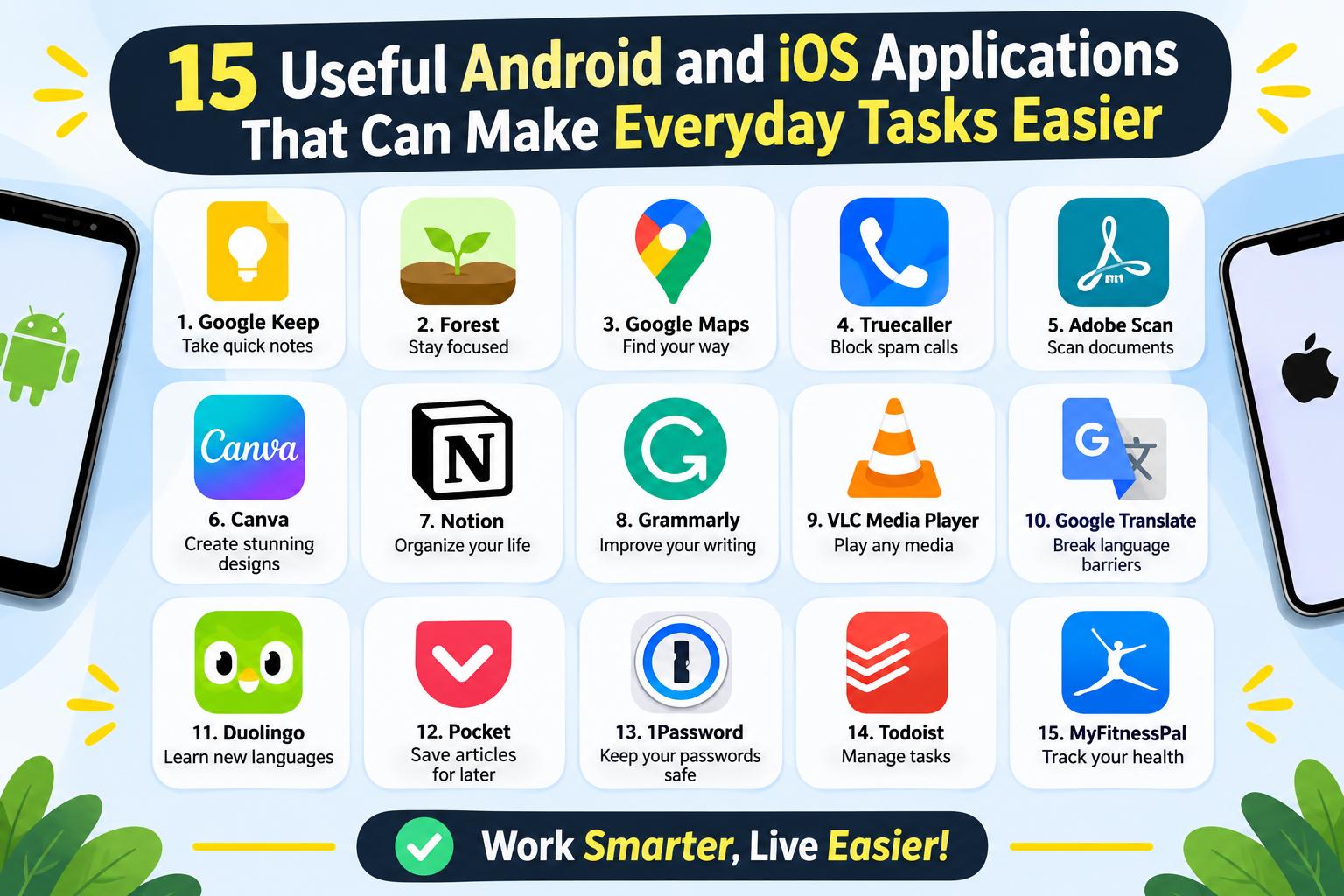
- 15 Useful Android and iOS Applications That Can Make Everyday Tasks Easier
-
 Health - 11:01:50pm 15-11-2026
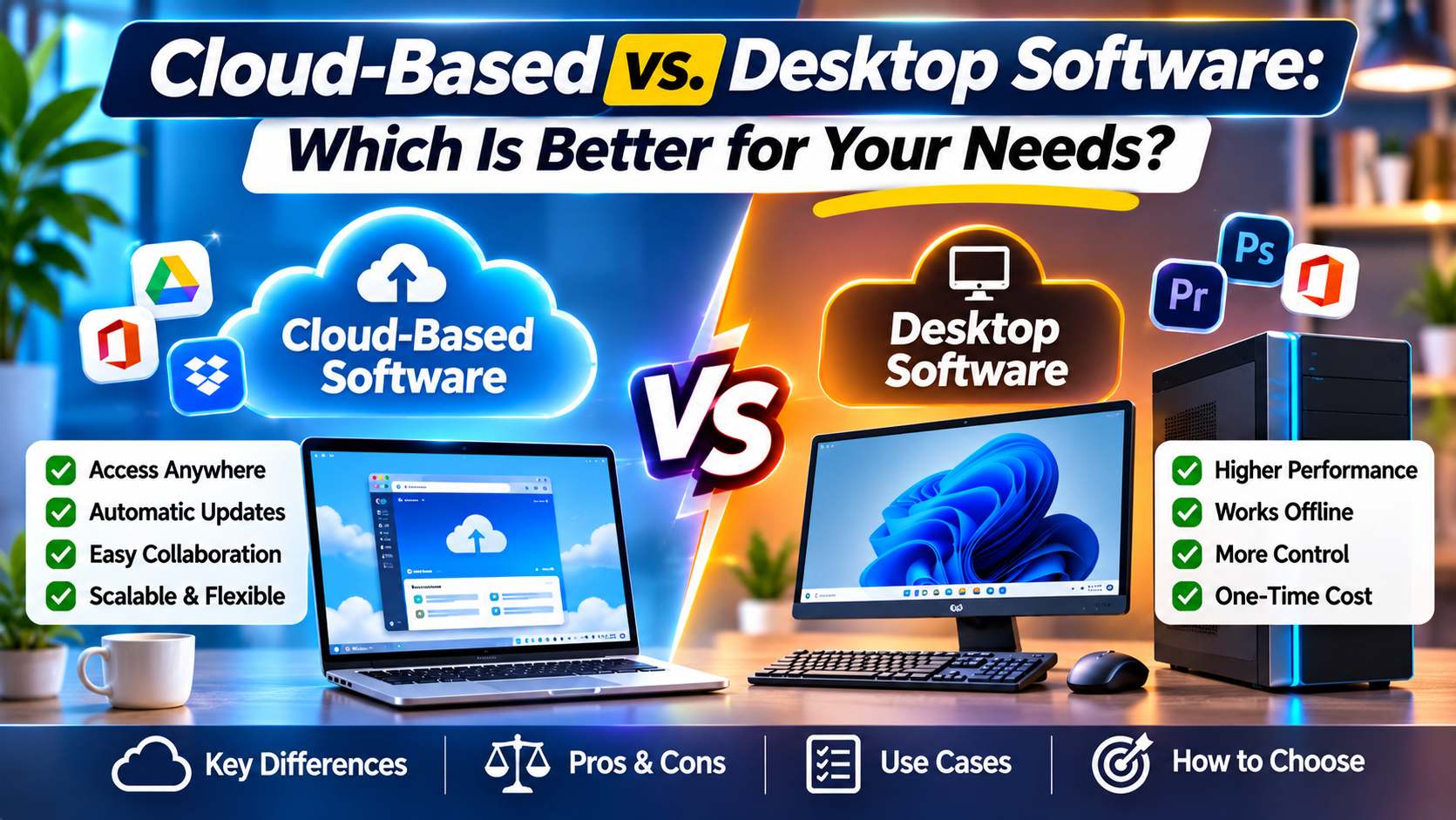
- Cloud-Based vs. Desktop Software: Which Is Better for Your Needs?
-
Health - 10:58:07pm 15-11-2026
-
 Blog
What Is the Best Cheap Car Insurance for Young Drivers
-
 Blog
Best Car Insurance for Electric Vehicles (EVs): Complete Guide for 2026
-
 Blog
Long Term Car Rental Discounts: The Complete Guide to Saving Big on Extended Rentals
-
 Blog
Health Insurance Exclusions: What to Check Before You Buy
-
 Blog
Health Insurance Waiting Period: What You Should Know Before Buying a Policy