-
Cetagory
Software & Applications
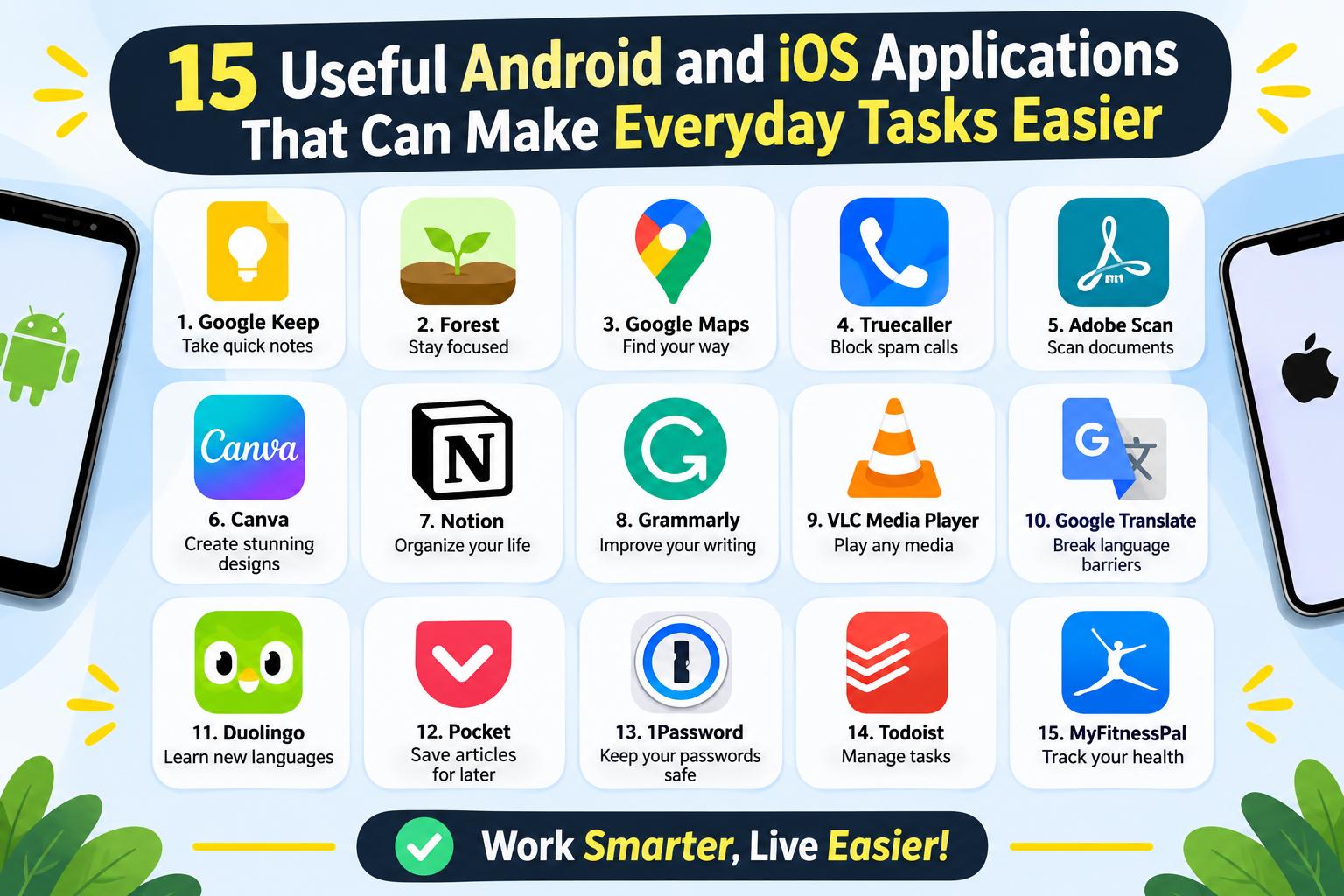
15 Useful Android and iOS Applications That Can Make Everyday Tasks Easier
- Admin
The best Android and iOS apps do more than fill a home screen: they help you remember commitments, find your way, manage information, and complete routine tasks with less friction. This guide covers 15 useful applications for everyday life, including options for calendars, to-do lists, notes, navigation, communication, password management, scanning, and personal organization. Availability and features can vary by device, country, and subscription, so use the recommendations as a practical shortlist rather than a one-size-fits-all ranking.
How to Choose Useful Android and iOS Apps
A useful app solves a recurring problem clearly. Before installing one, identify the task that currently causes friction: perhaps you forget appointments, lose important documents, need to coordinate with family, or have trouble keeping track of passwords. Matching an app to a real need is more effective than downloading several tools that all promise to organize your life.
Check device compatibility and availability
Some services offer apps for both Android and iOS, while others are tied to a particular platform or work differently across operating systems. Check the app’s current listing in Google Play or Apple’s App Store for supported devices, languages, regional availability, and any subscription requirements. App features can change over time, so verify details before relying on a feature for an important task.
Consider privacy, cost, and accessibility
Review the permissions an app requests and whether those permissions make sense for its purpose. A navigation app may need location access to provide directions, for example, but a simple note-taking app may not need access to your contacts. Also consider recurring costs, offline access, data export, screen-reader support, text size controls, and whether the app works well with the devices you already use.
Avoid app overload
Installing multiple apps for the same job can create more work: reminders become scattered, files are saved in different places, and notifications compete for attention. Start with one tool per task category, use it for a few weeks, and keep it only if it genuinely improves your routine. Built-in phone features may already meet some needs.
15 Useful Android and iOS Applications for Everyday Tasks
The apps below are grouped by the kinds of tasks they support. Some are available on both major mobile platforms, while platform-specific tools can be particularly convenient if you already use that company’s devices or services. Check current compatibility and terms in your region before downloading.
1. Google Calendar for scheduling
Google Calendar helps organize appointments, events, and recurring commitments in one place. You can create separate calendars for work, family, or personal plans, then choose which ones to display. Calendar sharing can also help households or project groups coordinate, although shared calendars should be configured carefully so you do not expose private details unintentionally.
It is especially useful when your schedule changes across devices or when you need reminders before an event. For a simpler routine, add only commitments that genuinely belong on a calendar; use a separate task list for small actions such as buying supplies or sending a quick email.
2. Apple Calendar for Apple users
Apple Calendar is built into Apple devices and can manage events, invitations, and reminders tied to supported calendar accounts. Its main advantage for many users is convenience: it is already available on iPhone, iPad, and Mac, and it can work with compatible calendar services. People who mostly use Apple devices may prefer it to installing another scheduling app.
Before relying on any calendar for a shared schedule, confirm that the other people involved can access it and understand which account is hosting it. Calendar synchronization depends on settings and connectivity, so check that important events appear on the devices you use.
3. Todoist for personal task lists
Todoist is a task-management app for capturing to-dos, organizing them into projects, and assigning due dates or priorities. It can be useful when a plain list has become difficult to manage, such as when you are balancing home tasks, errands, and work follow-ups. Recurring tasks can help track routines that repeat on a schedule.
Keep the system lightweight. Write tasks as clear actions, such as “renew library card,” rather than broad goals such as “get organized.” Some features may require a paid plan, so review the current plan details if you need particular tools or collaboration options.
4. Microsoft To Do for straightforward planning
Microsoft To Do offers lists and daily planning features that suit people who want a simple way to keep track of tasks. You might create lists for groceries, household maintenance, and work follow-ups, then select a few items to focus on each day. It can be a practical choice for users already working with Microsoft accounts and services.
A task manager is not a substitute for a calendar when a task must happen at a specific time. Use due dates for real deadlines, and avoid assigning dates to every minor action if that makes the list feel permanently overdue.
5. Google Keep for quick notes and reminders
Google Keep is designed for quick notes, checklists, and reminders. It can hold a shopping list, a short idea, or instructions you need to keep handy. Labels and colors can help distinguish different kinds of notes, but a small, consistent system is easier to maintain than a large collection of categories.
Keep is most helpful for information you need to capture quickly. For long documents, research notes, or complex projects, choose a tool with stronger organization and export options. Avoid storing highly sensitive information in an ordinary note unless you understand the service’s protections and your own account security.
6. Apple Notes for notes across Apple devices
Apple Notes gives Apple users a built-in place for written notes, checklists, and other supported attachments. It can be convenient for saving household instructions, planning a trip, or collecting details you want available on more than one Apple device. Folders and search make it easier to retrieve notes when you use them consistently.
If you keep private or important information in any note app, secure your device and account, and check whether the content is included in backups or synced to other devices. For shared notes, confirm who has access and remove access when a collaboration ends.
7. Google Maps for directions and local discovery
Google Maps can help you find routes, search for places, and compare travel options in supported areas. It is useful for everyday navigation, whether you are heading to an appointment or looking for a nearby service. Location and traffic information can vary by place and time, so treat estimated arrival times as estimates rather than guarantees.
For a trip where mobile data may be unreliable, check whether offline map downloads are available for the area and save them before leaving. Follow local road rules, pay attention to signs, and never interact with a phone while driving. A passenger can manage directions, or you can set up navigation before starting the journey.
8. Apple Maps for Apple device navigation
Apple Maps provides maps, directions, and place information on Apple devices. It may be a convenient default if you use an iPhone and want navigation integrated with the device’s other features. Coverage, route options, and place details differ by region, so compare the map information with local signs and other reliable sources when the route matters.
Before travelling, check the destination, route, and travel mode. For walking, cycling, public transport, or driving, select the option that reflects how you will actually travel. Do not assume every route is suitable for all mobility needs; check accessibility details where available and contact a venue when you need confirmation.
9. WhatsApp for messaging and calls
WhatsApp supports messaging and calls between people who use the service, subject to internet access and regional availability. It can make it easier to keep family, friends, or small groups in touch, particularly when participants live in different places. Group chats are useful for coordination, but they can also become noisy if every update generates a notification.
Review privacy and group settings, and be cautious with unexpected links, payment requests, or messages claiming to come from someone you know. A familiar profile name is not proof of identity. If a request seems unusual, confirm it through a separate, trusted channel.
10. Signal for privacy-conscious messaging
Signal is a messaging and calling app designed with a strong focus on privacy. It can be a useful option when the people you communicate with are also willing and able to use it. As with any messaging service, features, device support, and account requirements can change, so check the current official app information before depending on a particular capability.
Privacy tools cannot protect every part of a conversation. The person receiving a message may save, copy, or photograph it, and an unsecured or shared device can expose information. Use good device security, verify contacts when appropriate, and avoid sending information through chat if you do not want it retained or forwarded.
11. Bitwarden for password management
Bitwarden is a password manager that can store login details in an encrypted vault and help generate unique passwords. A password manager can reduce the temptation to reuse the same password across websites, where a breach at one service could put other accounts at risk. Strong account protection matters: choose a robust master password and enable available multi-factor authentication.
Set up account recovery thoughtfully and understand what happens if you lose access to the vault. Keep recovery information somewhere secure, not in an unprotected note on the same device. A password manager is one part of account security; also install software updates and be wary of phishing pages that imitate legitimate sign-in screens.
12. 1Password for organized credential storage
1Password is another password-management option for saving credentials and other sensitive records. It may suit individuals or households who want to organize access across devices, depending on the service’s current plans and features. Compare its terms, supported platforms, sharing controls, and recovery process with alternatives before moving important accounts into it.
Do not choose a password manager solely on the basis of a feature list. Consider how easily you can use it every day, how you will recover access, and whether it supports the browsers and devices you rely on. A tool that is difficult to use may lead to unsafe workarounds.
13. Adobe Scan for document capture
Adobe Scan can turn a phone camera into a document-scanning tool, helping capture receipts, forms, and paper notes. A scan is often easier to store and find than a loose sheet, but the result should be checked before you discard the original. Review page edges, text clarity, orientation, and whether every page is included.
Scanned documents may contain personal or financial information. Save them in a location with appropriate access controls, and avoid uploading sensitive records to a service unless you are comfortable with its privacy and account settings. For official submissions, check the recipient’s accepted file format and image-quality requirements.
14. Microsoft Lens for capturing documents and whiteboards
Microsoft Lens has been used to capture documents, notes, and whiteboards, with available features and distribution subject to change. It can be useful when you need a readable digital copy of a page or a meeting-board summary. Before adopting it, check its current status, supported devices, and export options in official app listings, because app availability and support can change.
Photographing a document does not automatically make it an acceptable official copy. If a school, government office, employer, or financial institution requests a particular format, follow its instructions. Check captured text for errors, especially when a scanned page contains numbers, names, or dates that must be accurate.
15. Any.do for combining tasks and daily planning
Any.do combines task planning with features that can help users organize daily responsibilities. It may appeal to someone who wants a single place to review tasks, errands, and routines rather than maintaining several separate lists. Compare its current capabilities and subscription terms with the task apps you already use before migrating your information.
When changing task apps, export or otherwise preserve information you cannot afford to lose, if the service offers a suitable method. Move only active tasks and useful reference material; transferring every old, completed item can make the new system harder to use from the start.
Which Apps Are Best for Common Everyday Needs?
The right choice depends on the problem you want to solve and the devices you use. This quick comparison highlights a practical starting point; it is not a claim that one app is universally better than another.
| Everyday need | Apps to consider | Best starting point |
|---|---|---|
| Appointments and events | Google Calendar, Apple Calendar | Use the calendar that already syncs with your devices and accounts. |
| Tasks and errands | Todoist, Microsoft To Do, Any.do | Choose one list system and keep tasks specific. |
| Quick notes | Google Keep, Apple Notes | Start with the built-in or account-connected option you can access easily. |
| Maps and directions | Google Maps, Apple Maps | Check local coverage, route suitability, and offline needs. |
| Passwords and document capture | Bitwarden, 1Password, Adobe Scan | Review security, recovery, privacy, and export options first. |
How to Set Up a Practical Mobile App System
Apps are more effective when they work together in a simple routine. You do not need a complicated productivity method; you need a reliable place to put information and a regular moment to review it.
Step 1: Identify one recurring problem
Choose a specific issue, such as missing appointments or forgetting grocery items. Write down how often it happens and what a better result would look like. This gives you a clear way to judge whether an app is helping rather than relying on a vague feeling that you should be more organized.
Step 2: Pick one app for the job
Choose a calendar for time-based commitments, a task manager for actions, and a notes app for information you want to keep. These categories can overlap, but do not duplicate the same reminder in several places unless there is a clear reason. One dependable system is easier to maintain than a collection of competing systems.
Step 3: Configure only useful notifications
Turn on alerts that help you act at the right time and silence those that merely interrupt you. A meeting reminder may be valuable; a notification for every minor list change may not be. Review notification settings after a week and adjust them based on what you actually use.
Step 4: Protect your accounts and information
Use a screen lock, keep your operating system and apps updated, and enable multi-factor authentication where available. Review app permissions and account-sharing settings. Back up information that would be difficult to recreate, and understand whether an app lets you export your data if you stop using it.
Step 5: Review and simplify regularly
Spend a few minutes each week checking upcoming events, unfinished tasks, and notes that need action. Delete obsolete lists, remove apps you no longer use, and adjust reminders that create noise. A small maintenance habit keeps a useful setup from becoming another source of clutter.
Common Mistakes to Avoid When Using Everyday Apps
Using several tools for the same task
Keeping appointments in multiple calendars or tasks in several lists can lead to missed updates and uncertainty about which version is correct. Decide which app is the main source for each category. If you need to use another service for sharing or work, confirm how information synchronizes and avoid editing duplicate entries in different places.
Ignoring privacy and permission settings
Convenience does not remove the need to understand what an app can access. Review permissions when installing and revisit them if the app’s purpose changes. Be especially careful with location, contacts, microphone, camera, and file access. The exact controls differ between Android versions, iOS versions, and devices.
Relying on an app without a backup plan
A phone can be lost, damaged, or temporarily disconnected. For important appointments, travel details, or official documents, know how to access the information from another device or account when possible. Do not assume every app will work offline or that all data is automatically backed up.
Assuming scanned or shared information is error-free
Camera capture, text recognition, syncing, and automatic reminders can all make mistakes or miss context. Check names, amounts, dates, and destinations when accuracy matters. For official or high-stakes processes, follow the receiving organization’s instructions instead of assuming a digital copy will be accepted.
Letting notifications take over
An app intended to save time can consume attention if it sends too many alerts. Disable nonessential notifications, leave only useful reminders, and consider using your phone’s built-in focus or notification controls. Review settings after installing an app rather than accepting every prompt by default.
Choosing Apps for Android and iPhone
Android and iOS both support a broad range of useful apps, but the experience can differ by operating-system version, device manufacturer, region, and account settings. An app may offer a feature on one platform before another, or its interface may work differently. Check official app listings and help pages for the details that matter to your setup.
Also consider built-in tools. Android phones commonly include Google services or manufacturer-specific apps, while Apple devices include Calendar, Notes, Maps, and other system apps. You may already have a capable option without adding another account or subscription. The best app is often the one that fits your existing habits and remains easy to use.
Conclusion
Useful Android and iOS apps can make ordinary tasks easier when they solve a clear problem: calendars manage commitments, task lists track actions, notes capture information, maps support navigation, and security tools help organize account access. Start with one or two needs, compare compatibility and privacy, and choose tools you can maintain consistently.
Keep your setup simple, protect sensitive information, and review your apps as your routine changes. A focused collection of dependable tools is generally more useful than a crowded phone filled with overlapping features.
Frequently Asked Questions
Are these Android and iOS apps free to use?
Some apps offer free versions, while others may limit certain features to a paid plan or subscription. Pricing and included features can change by region and over time. Check the current listing and terms before signing up, and consider whether the free version meets your needs without requiring an upgrade.
Can I use the same apps on Android and iPhone?
Many services provide versions for both Android and iOS, but not every app is available on both platforms, and features may differ. Check the official app store listing for your device and confirm that the account, data-syncing, and collaboration features you need are supported across your devices.
Which app is best for organizing everyday tasks?
There is no single best task app for everyone. Todoist, Microsoft To Do, and Any.do are examples to compare, while a basic notes or reminders app may be enough for a short list. Choose one that is easy to update, fits your devices, and lets you see the next action clearly.
Are password manager apps safe to use?
Password managers are designed to protect stored credentials, but safety also depends on your master password, account security, recovery setup, device protection, and the provider’s current practices. Review official security information, enable multi-factor authentication where available, and keep recovery details somewhere secure.
Do everyday apps work without an internet connection?
Offline access varies by app and feature. Some tools may let you view saved notes or downloaded maps without a connection, while syncing, searches, calls, and other functions may require internet access. Check offline capabilities before travel or relying on an app in an area with limited coverage.
- 15 Useful Android and iOS Applications That Can Make Everyday Tasks Easier
-
 Health - 11:01:50pm 15-11-2026
- Cloud-Based vs. Desktop Software: Which Is Better for Your Needs?
-
Health - 10:58:07pm 15-11-2026
-
 Blog
What Is the Best Cheap Car Insurance for Young Drivers
-
 Blog
Best Car Insurance for Electric Vehicles (EVs): Complete Guide for 2026
-
 Blog
Long Term Car Rental Discounts: The Complete Guide to Saving Big on Extended Rentals
-
 Blog
Health Insurance Exclusions: What to Check Before You Buy
-
 Blog
Health Insurance Waiting Period: What You Should Know Before Buying a Policy